This article is a guide on the payroll and system health status on Sage VIP Classic and Sage VIP Premier.
Description
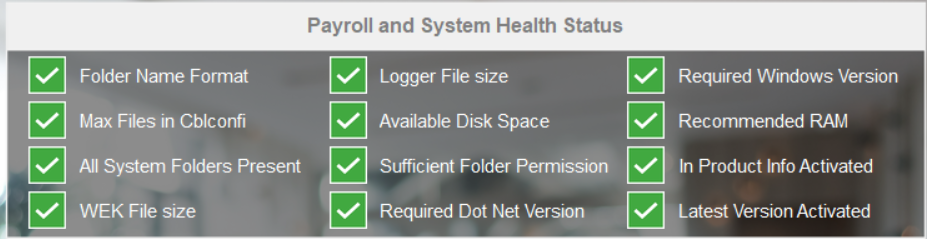
Checks were built into the system to monitor the status of your system and to indicate immediately if there are any errors.
If the minimum requirements are met, a green box will display a tick.
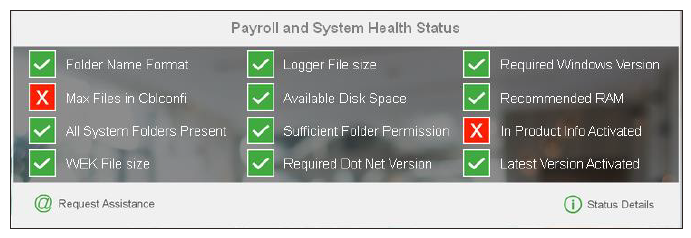
If a red box displays a cross this will indicate there is a warning or error that needs to be solved.
Cause
The Payroll and System Health Status has a red cross, as one of the areas do not meet the minimum requirements and need to be reviewed.
Resolution
The following information must be checked:
No spaces are permitted in the folder name.
 EXAMPLE: C:\SageVIP\Premier will be correct. C:\SAGE VIP\PREMIER will be incorrect
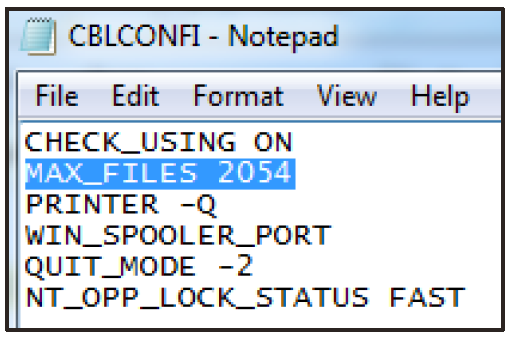
Max Files in Cblconfi Maximum files must be at least 1024 or higher. Click here for the steps on how to increase the max files.
All System folders present The payroll directory must have these folders - Advisor, Backups, Insight, ODBC and Sage Intelligence (if licenced for Sage Intelligence)
The following folders should exist in your payroll directory:
| Folder Name | Description | Mandatory |
| Advisor | This folder contains report templates and guideline documentation. | Mandatory |
| Attachments | This folder is used when opening attachments loaded on the payroll | Mandatory |
| Backups | When installing a new update backups is made to this folder. The backup is used to do a rollback if anything goes wrong when loading a update | |
| Checklist | This folder contains all checklists documentation used as a guide to perform certain tasks | |
| DOWNLOADS | Information downloaded and used by connected services when pushing messages to desktop is stored in this folder | |
| Exports | This folder can be used for export files | |
| Insight | All the program files related to Insight is saved in this folder. | Mandatory if using Sage Insight |
| InstallerLogs | When loading a software update a text file with a log related to the installation is stored in this folder | |
| ODBC | All program and setup files related to ODBC is stored in this folder | Mandatory if using ODBC |
| ReporterLib Log | If any printing problems related to PDF printing or Excel printing is experienced, a log entry is made to assist with resolving the problem. | |
| SARSSubmission | If you make use of the SARS Submission Utility, all reports printed and files exported is stored in this folder. | |
| Special Solutions | Any Special solutions Reports (ODBC), that is called from within the system (Reports > Special Solutions) is stored in this folder | |
| Tools | This can be loaded to assist with troubleshooting by CS when experiencing connected service problems | |
| VIPSMART | If the client is licensed for VIPSMART and they purchase the report pack, this folder will create when they run the VIPSMART installer. All files related to this module is stored in the folder | Mandatory if using SMART |
| VIPBIM | If the client is licensed for Sage Intelligence, they will have a VIPBIM folder after installing the relevant software. This folder contains all the files required to use this module | Mandatory if using Sage Intelligence |
WEK File Size The size of this file should not be more than 1GB. Click here for steps on how to reduce the file size
Logger File size The size of this file should not be more than 1 GB. Click here for steps on how to reduce the file size.
Available Disk Space Disk space must be at least 20 GB but we recommend 40 GB. Please request the assistance of your IT Department to increase the available disk space where the Payroll System is install
 NOTE: If you access the system in a network environment, the server location must be mapped to a drive letter, and must be set as a trusted site under Local Intranet. Once this has been done, recreate the shortcut to your system and ensure the shortcut properties and system location under Support Help, points to the same mapped location.
If your machine has the required disk space you may review the following:
Sufficient Folder Permission All User Accounts that require access to the Payroll Application must have Full Control.
These permissions must also apply to descended folders and files. The user permissions for sharing on the folder must also be full.
Please request the assistance of your IT Department to correct the current User Permissions.
Required Dot Net Version The required.NET version must be 4.8 or higher as from Release 6.1a.
.NET 3.5 is also required to be activated
In Product Info Activated We suggest that this be activated.
- Click on Company
- Miscellaneous
- Tab 3
- Tick Hot off the Press, Info @ Sage VIP.
Latest Version Activated It is always important to be on the latest Payroll version to ensure that the latest statutory requirements are applied.
NOTE: As from Release 6.1b, the version test will not be applicable anymore and can be ignored - this will be removed in a future release.
Request Assistance If the user clicks this button an email will be generated to the relevant support department with all the current system data to be reviewed. Please indicate user and company detail before sending the email.
Status Details This option will list all the Payroll and System Health Status items with an explanation and details as to how the user can resolve any warnings.
This screen can be exported to Excel for printing by clicking on the Print button, for easy reference.
Click on the …More Detail button, for an in depth explanation of how to correct any problems.


 Africa
 Asia
Asia Australia
 Canada
 France
 Ireland
 Kenya
Kenya Nigeria
 Portugal
 Spain
Spain United Arab Emirates
 United Kingdom
 United States
 Germany