Click here to access the Download Manager and download Debtors Manager installation file under the Modules and Additional Applications tab as shown below. 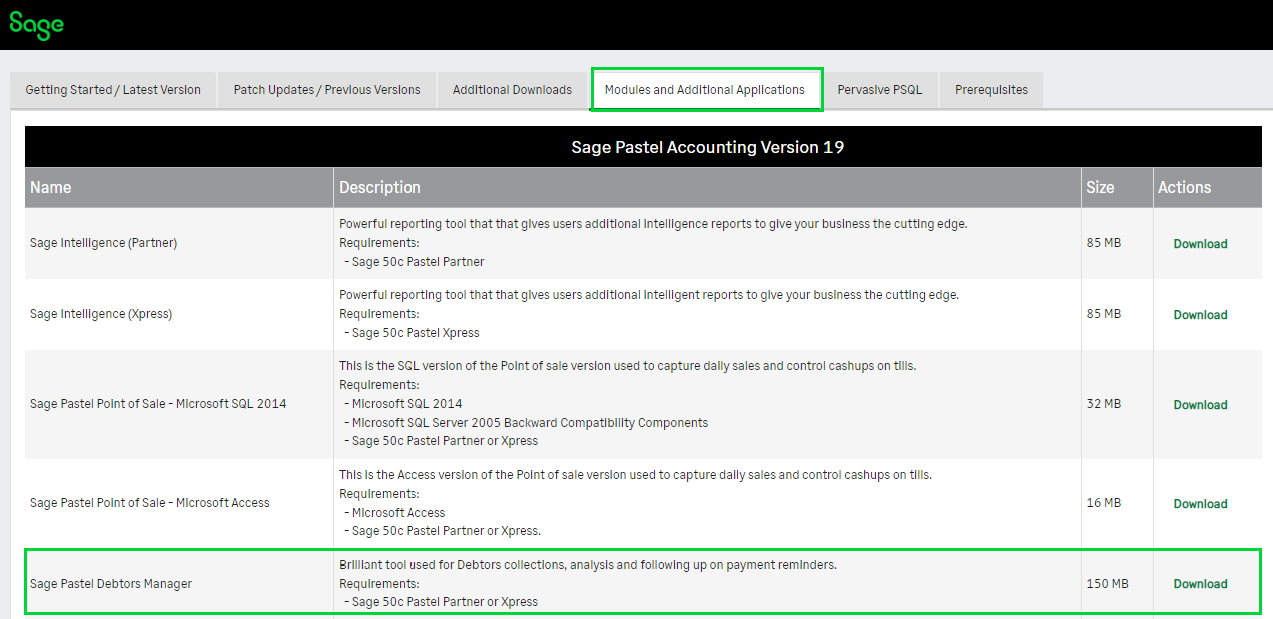
Steps to install Pastel Debtors Manager SQL VersionHow to install Pastel Debtors Manager SQL Version: The steps for setting up Pastel Debtors Manager SQL Version are as follows: On the server - Click here for steps on how to download and install Microsoft SQL Server 2014 that includes Management Studio
- Download Pastel Debtors Manager SQL Version as above
- Install Pastel Debtors Manager SQL Version
On the workstation Do not run the SQL installation on the workstation. - Download Pastel Debtors Manager SQL Version as above
- Install Pastel Debtors Manager SQL Version
Installing Pastel Debtors Manager SQL Version on Single-user / ServerFollow the steps below to install Pastel Debtors Manager SQL Version on Single-user / Server. - Double click on the downloaded Sage50cPastel_DebtorsManager[5.0.1].exe file
- Click Next
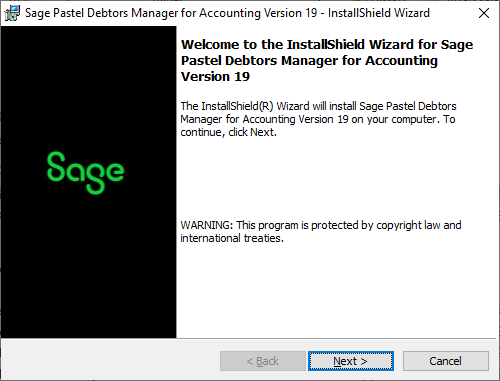
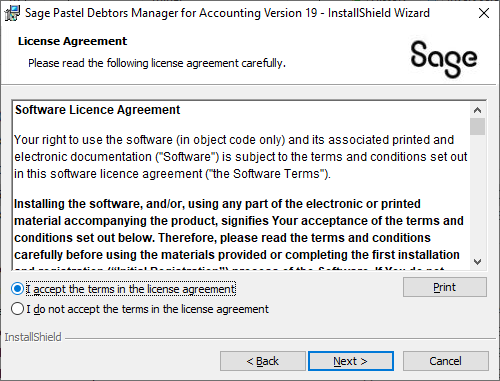
- Accept terms and click Next
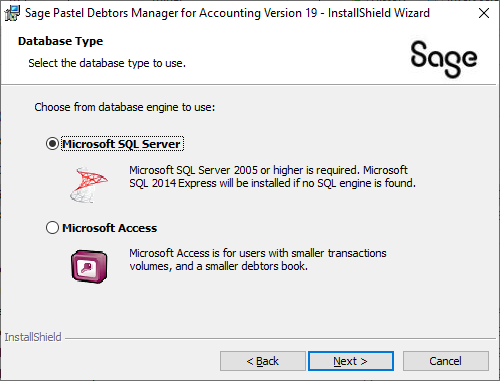
- Select Microsoft SQL Server and click Next
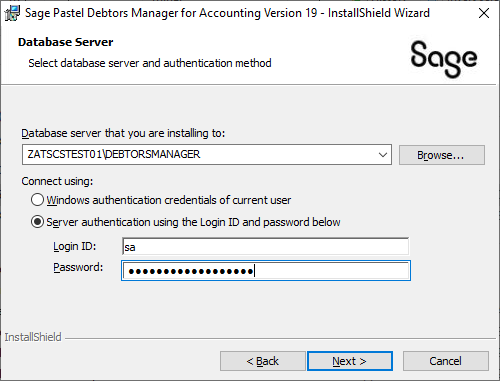
- The database server (DEBTORSMANAGER) that was installed already should be selected by default or you can select it by clicking Browse.
- The Login ID should always be sa
- Enter the password Debtorsmanager@123 or password that you used during the Microsoft SQL Server 2014 installation
- Click Next
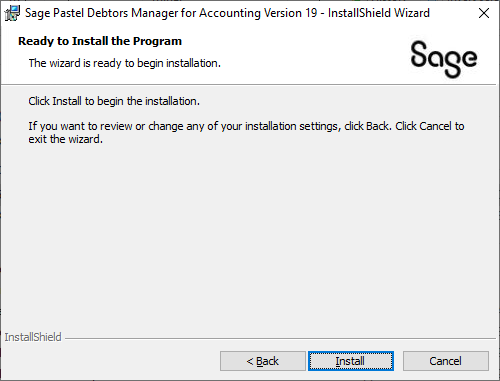
- Click Install to begin the installation
8. Once the installation is complete click on Finish 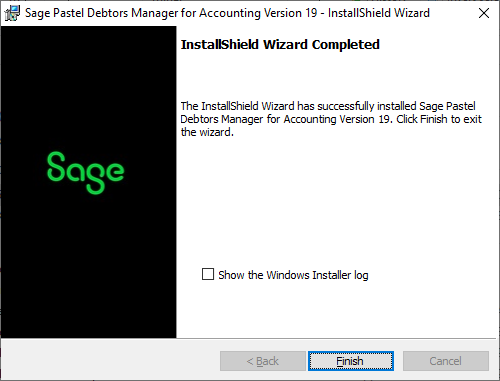
Installing Pastel Debtors Manager SQL Version on WorkstationFollow the steps below to install Pastel Debtors Manager SQL Version on Workstation. - Double click on the downloaded Sage50cPastel_DebtorsManager[5.0.1].exe file
- Click Next
- Accept terms and click Next
- Select Microsoft SQL Server and click Next
- Browse to the database server (DEBTORSMANAGER) that was installed on the server by clicking Browse.
- The Login ID should always be sa
- Enter the password Debtorsmanager@123 or password that you used during the Microsoft SQL Server 2014 installation
- Click Next
- Click Install to begin the installation
8. Once the installation is complete click on Finish
Accessing Pastel Debtors Manager SQL Version You can open Debtors Manager from within Pastel. 
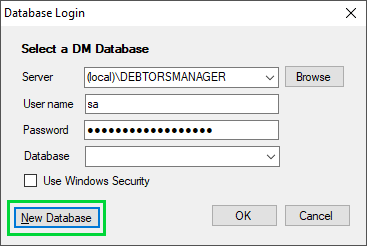
Opening company on Pastel Debtors Manager SQL Version - Click File…Open
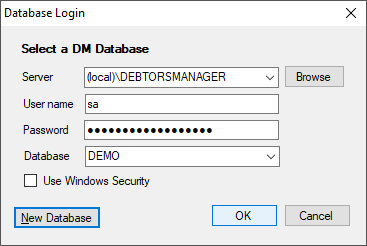
- Enter the login details
User name: sa
Password: Debtorsmanager@123 or password that you used during the Microsoft SQL Server 2014 installation - If this is the first time you are opening the company on Debtors Manager, you will need to create a new database.
- Click New Database
 - Enter a Database name and click OK. We recommend using same name is your company folder
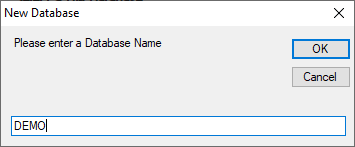 - Click OK
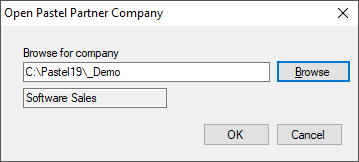
 - Browse for and select the company folder, if on workstation select the company from the network drive and click OK
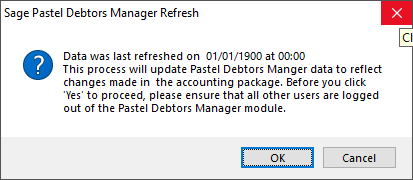
 - The Refresh screen will come up. Click OK
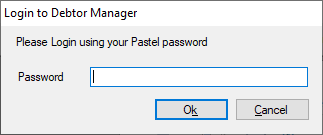
 - When the data refresh is complete, enter your Pastel password and click Open
|