Solution Properties
Solution ID:
200430105323559
Last Modified Date:
Mon Apr 20 09:16:05 UTC 2026
Taxonomy Path:
Case category//How do I...//download/install/activate/upgrade
Author:
[email protected]
Install Sage Pastel Point of Sale with SQL
Description
Cause
Resolution
Need to
add additional users
or
companies
to Sage 50cloud Pastel
Log a ticket
to receive a callback.
[BCB:435:ZADK - Sales link (blank) for Sage50 Pastel:ECB]
Download Sage Pastel POS
Go to
Sage Pastel Updates
.
Select
Module and Additional Applications
.
Under your version, select
Sage Pastel Point of Sale – Microsoft SQL 2014
.
Click
Download
and save the file.
Install POS on a server or standalone machine
Confirm that you've already installed
SQL Server
.
If not, see
How to install SQL for Debtors Manager or Point of Sale
.
Double-click
Sage50cPastel_POS_SQLSetup[5.0.0].exe
.
When the InstallShield Wizard launches, click
Next
.
Accept the Licence Agreement and click
Next
.
Select
Server/Standalone
and click
Next
.
For
Select Database Server
, choose
(local) PASTELPOS
.
Set
Connect using
to
Server Authentication
.
Login ID:
sa
Password:
Pointofsale@123 or the password you set when installing SQL
Click
Next
, then
Next
again.
Click
Install
, then
Finish
once complete.
Install POS on a workstation
NOTE:
Don’t install SQL on the workstation.
Double-click
Sage50cPastel_POS_SQLSetup[5.0.0].exe
.
When the InstallShield Wizard launches, click
Next
.
Accept the Licence Agreement and click
Next
.
Select
Workstation
and click
Next
.
Click
Next
again, then
Install
.
When finished, click
Finish
.
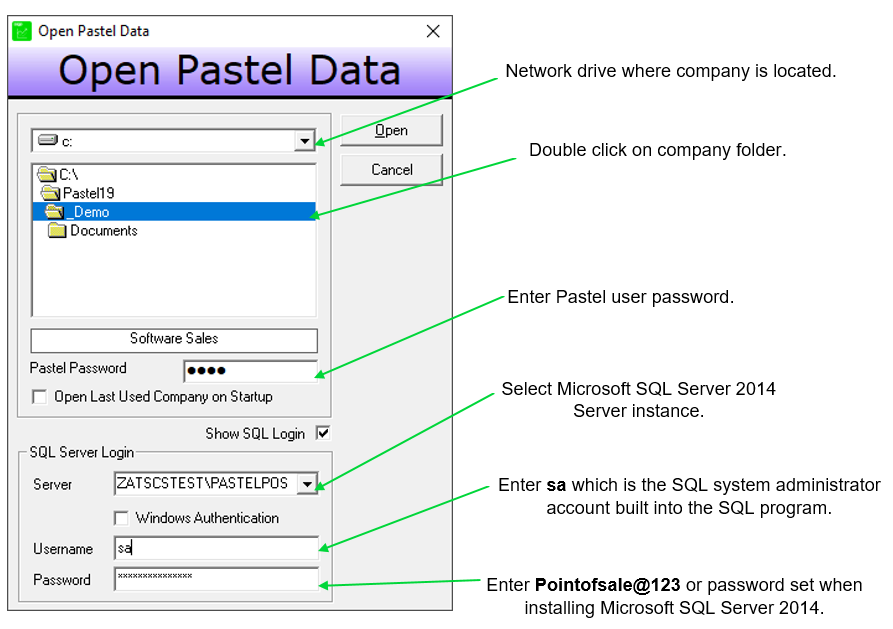
Configure POS SQL
Open
POS
and click
File > Open
.
Select the drive where you locate your companies.
On workstations, select the network drive.
Double-click the company folder.
Enter your company password.
Set the
SQL Server
to the machine where you installed SQL.
Enter the SQL login details:
Login ID:
sa
Password:
Pointofsale@123 or the password you set when installing SQL
Click
Open
to complete the setup.
Steps to duplicate
Related Solutions