Company Opening/Locating: 'Error during system tree load! [TBrilliantPackageManager.E01] The underlying provider failed to open' error opening company
Summary
Description
The following error message may display when opening an Evolution company:

Resolution
Consider the following advice to resolve the above error:
A. SQL Server Restart
1. Ensure all users are logged out of all companies.
2. Restart the MS SQL Server PC.
3. Check if the above error has been resolved.
If not, continue with the rest of the article below.
B. Microsoft .Net Framework
Review the currently installed versions of Microsoft .Net Framework on the local PC where the above error is displayed.
You may find that its version is incompatible with the currently installed Evolution version.
For instance, when using Evolution version 11, these two versions should be installed, and the options below should be selected.

For any other Evolution versions, consult with Sage Evolution Support to confirm the required Microsoft .Net Framework versions that should be installed.
Even with the above versions and options in place and the same error still observed, consider uninstalling and re-installing Microsoft .Net Framework on the local PC, due to possible system file corruption.
Consult with your local IT technician for further assistance in the uninstalling and re-installing routines.
Continue with the rest of the article below if still needed.
C. Forcing Named Pipes on the Company Location
Do the following on the local workstations where the above error is observed:
1. Highlight the company on the Evolution Company Login screen, and click the Edit button.
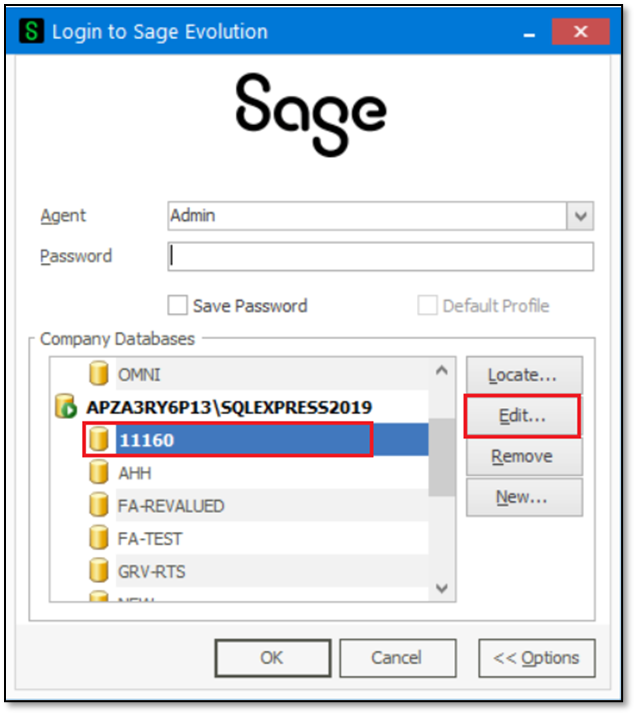
2. Enter the following right in front of the current SQL Server Name instance version as seen below:
np:
For instance, np:APZA3RY6P13\SQLEXPRESS2019

3. Click the Next button above.
4. Repeat Step 2 on the Common Database screen also.

5. Click the Finish button above when done.
6. Repeat the above steps for all Evolution companies.
7. The above error should now be resolved.
Solution Properties
- Solution ID
- 250115122003917
- Last Modified Date
- Wed Jan 15 12:21:17 UTC 2025
- Views
- 0