Inventory: 'Post Average Cost Variance' option on Inventory | Maintenance | Inventory Defaults | Return to Supplier tab
Summary
Description
This article discusses the Post Average Cost Variance option on the Inventory | Maintenance | Inventory Defaults | Returns to Supplier tab, and how it works.

Resolution
Consider the following advice to achieve the above outcome:
Backdated 'Return to Supplier', 'Customer Invoice' and other transactions that reduce item quantities
Consider the following scenarios to explain further:
Scenario 1:
1. On the Inventory Defaults | Return to Suppliers tab, the Post Average Cost Variance option is unselected.

2. Create a new Inventory Item called MXM with an Average Unit Cost of R2.71

3. Transaction 1: Process an Inventory Adjustment as below.
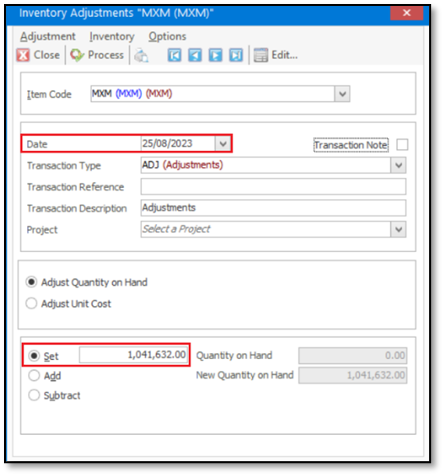
4. Transaction 2: Process a Return to Supplier transaction as below. Notice the transaction date below is on a date when where there were still zero units in stock.

5. Transaction 3: Process an Inventory Journal Batch transaction as below.

6. Transaction 4: Process a Goods Received Voucher (SINV) transaction as below.
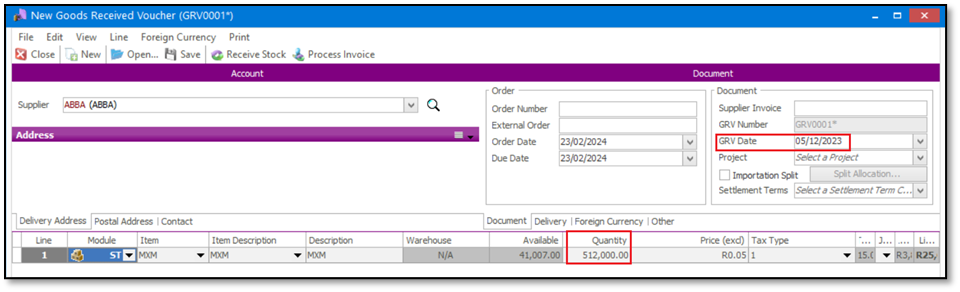
7. Transaction 5: Process a Return to Supplier transaction as below.

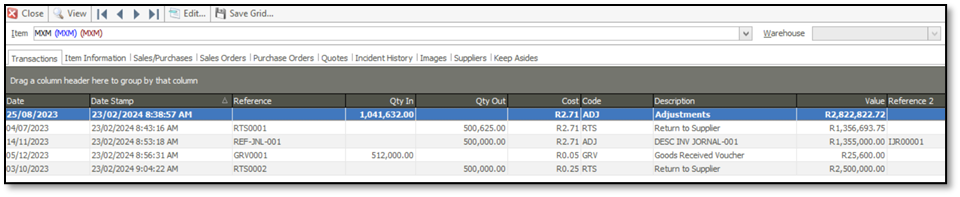
8. When done, view the Inventory Enquiries screen to review the transaction history.
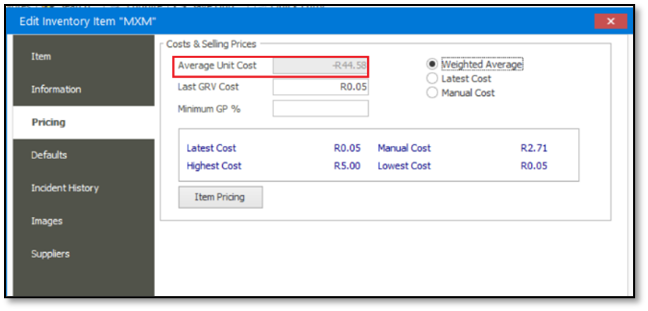
9. You should now also be able to view the negative Average Unit Cost on the Item Maintenance | Pricing tab.
10. In addition, you should also notice the following on the Inventory | Enquiries | Valuation by Date Utility:
- 2 Negative Calculated Unit Cost values
- A Total negative valuation for the stock item on the bottom right of the screen: -2 363 271.03

Scenario 2:
1. In the Inventory Defaults screen, select the Post Average Cost Variance option and save the change.
2. Create a new Inventory Item called LRA, also with an initial Average Unit Cost of R2.71 (as with item MXM).
3. Repeat Steps 3 to 7 above for item LRA.
4. On the Inventory | Enquiries | Valuation by Date utility, you should notice the following values.
Notice that the Calculated Unit Cost value for the transaction with the last Transaction Date (the GRV of 5 Dec 2023) is -R22.98, which is different from the results in Scenario 1 above.
The total valuation at the bottom right of the screen is also negative but different from the value in Scenario 1.

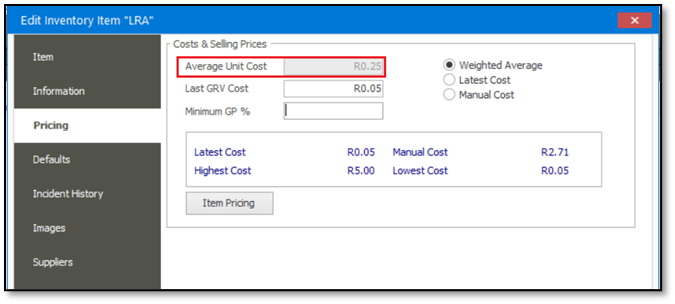
5. On the Item Maintenance screen you should notice a positive Average Unit Cost.
CONCLUSION:
The reason for the different values between Scenario 1 and 2, is due to the option marked below in the Inventory Defaults screen.

The selection of this option should prevent
- having a negative or incorrect/inaccurate Average Unit Cost value for stock items
- for postdated transactions such as Return to Supplier, Customer Invoice and other transactions that reduce item quantities
- on dates where there were technically insufficient quantities. For example, when the first RTS above was processed with a transaction date of 4 July 2023, there were still zero units available.
If this is the case and you want to get rid of negative/incorrect cost values and negative/incorrect quantities, do the following:
1. Review your Inventory Valuation and identify items with a negative Unit Cost.
2. Evaluate and manually calculate what the Unit Cost value is supposed to be.
3. Process Inventory Journals on these items to correct their Unit Cost values.
Solution Properties
- Solution ID
- 241116140552337
- Last Modified Date
- Sun Nov 24 12:23:50 UTC 2024
- Views
- 0