General Ledger, Customers, Suppliers, Inventory: Most common import file setup mistakes for importing into Evolution Cashbook and GL, Customers, Suppliers, and Inventory journal batches
Summary
Description
This article explains the most common import file setup mistakes for importing into Evolution Cashbook and GL, Customers, Suppliers, and Inventory journal batches
Resolution
Find below advice about the most common import file setup mistakes and prevent making them when setting up your import file:
Setup Mistake 1: Transaction Date inconsistencies
All date values included in import files should have the same short date format. This can be either dd/mm/yyyy or yyyy/mm/dd.
Before populating your import file, first check that Short Date Format has been configured on the local PC’s Region | Addition Settings screen.
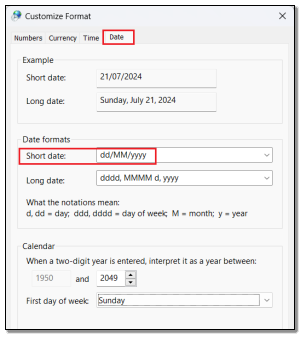
Thereafter, ensure the short date format used on the import file is using the same format as captured above.
Setup Mistake 2: Date fields not using the Date or Custom cell property
Ensure that all date values on your import files use either the Date or Custom cell properties (also considering Step Mistake 1 above)
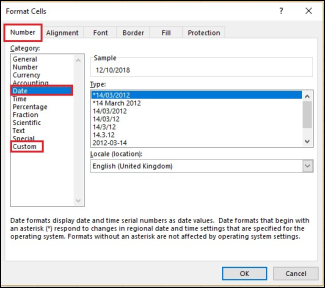
Tip:
Ensure that all non-date field values make use of the Text cell property.
Setup Mistake 3: Using any kind of special / ‘illegal’ characters on any field / record on the import file
Always refrain from using any kind of special characters such as , ; : ‘ “ * $ @ ! / | \ etc, on the import file, as they may cause any kind of import errors and issues.
Setup Mistake 4: Not using a CSV import file
The import file must be saved as a CSV file and no other file format will be acceptable.

Setup Mistake 5: Import file opened while importing
Always ensure the actual import file used to import records, is closed (not even minimised) before starting the import.
Setup Mistake 6: Hidden rows and/or columns in the import spreadsheet
Always ensure there are no hidden rows and/or columns in the import spreadsheet.
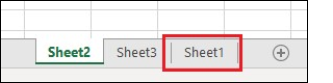
Setup Mistake 7: Having records to be imported not on Sheet 1
The records to be imported should always only be on Sheet 1 of the import file.
Also, refrain from having any other sheets at all. In this case, Sheet2 and Sheet3 should be deleted.
Setup Mistake 8: Using formulae for numerical values or any kind of cell referencing feature
Refrain from using any kind of formulae of numerical field values.
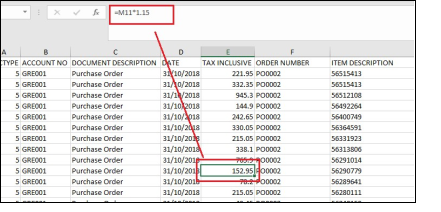
When working in Excel, make use of the Copy and Paste | Special | Values feature to paste absolute, formulae-free values.
Also, don’t use any kind of MS Excel cell referencing feature for any values in the import file. For example, the cell values in rows B2-B100 = the values in rows G2-G100 in the same or any other worksheet.
Setup Mistake 9: Having any blank columns or any cell values
Ensure there are no empty cells or columns in the import file.
Setup Mistake 10. Wrong Field Mapping setup
On the cashbook batch and certain journal batches, you need to set up Field Mapping screen before the import can occur. This Field Mapping is done in relation to the actual import file being used. This mapping should apply a strict one-to-one principle.
That means only the specific column fields in the import file should be marked for import on the Field Mapping screen.
Neither the Import file nor the Field Mapping screen should have any irrelevant fields that you are not going to import.
Therefore, always ensure that:
• All the fields as mapped in the relevant Field Mapping screen area are also included on the import file.
• All fields that are included on the Import File are also mapped accordingly on the Field Mapping screen.
• In short: Apply a strict one-to-one field mapping principle between the Field Mapping screen and the relevant import file.
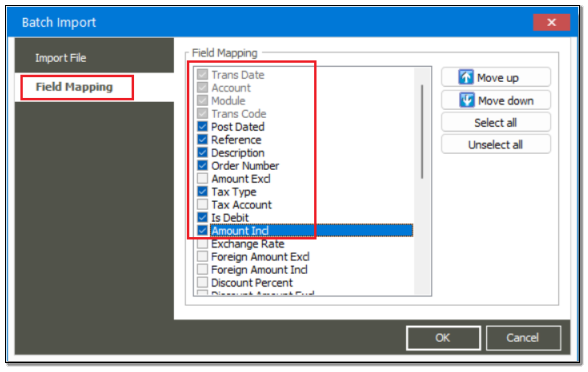
Setup Mistake 11: Import file column order (sequence) from left to right differs from the Field Mapping screen field sequence
The same left-to-write sequence of columns on the import file should be adhered to on the relevant Field Mapping screen as read from top to bottom.
Tip:
When you are satisfied with the contents of the import sheet, keep it open to be referenced when setting up the exact column order mapping on the relevant Field Mapping screen
When done, save and close the import file and ensure it’s saved in an easy reachable location.
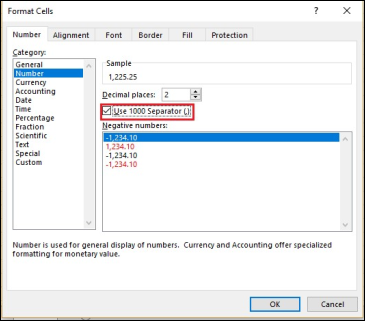
Setup Mistake 12: Making use of the 1000 Separator feature for numerical values
Always refrain from using the Use 1000 Separator option as indicated below on cell properties for any numerical values, when formatting the import file.
Setup Mistake 13: Including spaces before or after any values in any cells on the import file
Ensure there are no spaces before or after any cell values within the import file. This is due to spaces regarded as characters.
Setup Mistake 14: Including hidden rows and columns on the Import file
Remove all hidden rows and columns on the final import file by deleting them and not hiding them.
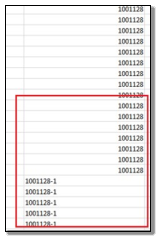
Setup Mistake 15: Not using a consistent column alignment
Always ensure all values in all the cells use the same right or left column alignment.
For example, notice the values marked below where some cells are aligned to the right and others to the left. Ensure therefore that the entire content of all columns in the import sheet is aligned to for example, the right and not having multiple alignments.
Solution Properties
- Solution ID
- 240728112025640
- Last Modified Date
- Tue Jul 30 06:10:32 UTC 2024
- Views
- 0