

Summary
Description
You may observe the following error message when trying to open the Debtors Manager module.
This is when opening the Customers | Transactions | Debtors Manager node.

Resolution
Consider the following advice to resolve the above error:
A. Incorrect Mapping
Do the following to resolve the above error:
1. Open File Explorer (Windows Explorer) on the local PC.
2. Go to your currently installed Sage Evolution folder, for example, C:\Program Files (x86)\Sage Evolution.
3. Here, check that the CM subfolder is included, for example, C:\Program Files (x86)\Sage Evolution\CM.
4. Else, the Debtors Manager may have been installed in a different location outside the main Evolution installed folder.
Therefore, confirm where the relevant installed CM folder resides on the local PC.
This is allowed as long as the same install directory used to install the main Evolution application was also used to install Debtors Manager.
5. If Debtors Manager isn’t installed on the local PC, refer to point B. Debtors Manager not installed (further down on the article).
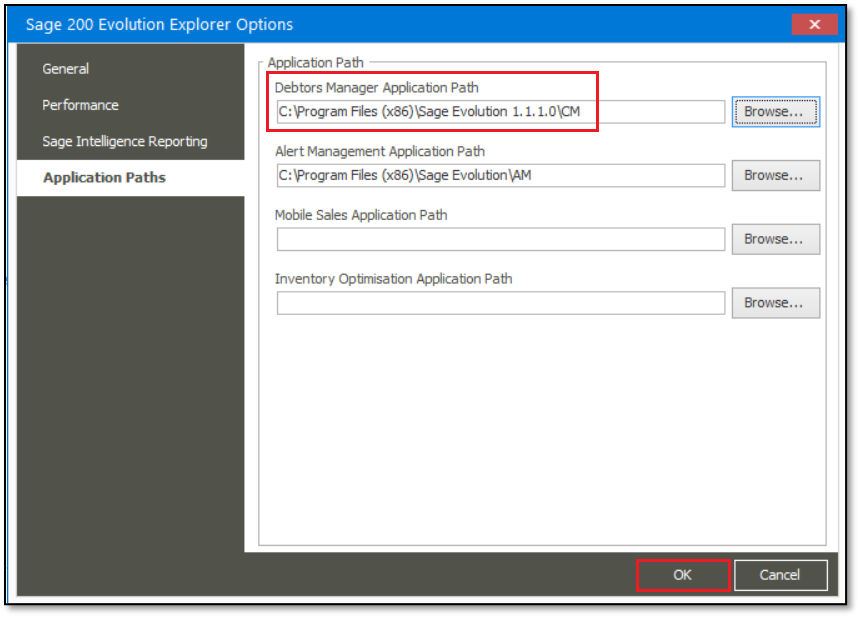
5. Within the Evolution company, go to Utilities | Explorer Options | Application Paths.
6. Click the Browse button on the Debtors Manager Application Path field and then browse to the identified location of the CM folder in Step 3 or 4 above.

7. When done, click the OK button to save the change.
B. Debtors Manager not installed
The Debtors Manager module should be installed on the local PC, as can be seen in Control Panel | Programs and Features.

If not, do the following:
1. Close Evolution on the local PC.
2. Uninstall Evolution and all modules.
3. Restart the PC.
4. Reinstall Evolution using the Custom option.

5. On the Selected Components screen, deselect all the irrelevant module options and select all the relevant options, including Debtors Management.

6. Complete the Installation Wizard and wait until it's installed.
7. When done, open the Evolution company.
8. If still needed, apply the advice provided in point A. Incorrect Mapping above.
 Africa
 Asia
Asia Australia
 Canada
 France
 Ireland
 Kenya
Kenya Nigeria
 Portugal
 Spain
Spain United Arab Emirates
 United Kingdom
 United States
 Germany