

Summary
Description
New functionality has been added in the People application that allows you to integrate the general ledger on your Sage 300 People application with the Sage 300 Cloud application.
In Sage 300 Cloud you can create a new database containing the general ledger information for each entity based on your organisation’s requirement. In Sage 300 People you can link each company rule to a specific Sage 300 Cloud database.
Resolution
New functionality has been added in the People application that allows you to integrate the general ledger on your Sage 300 People application with the Sage 300 Cloud application.
In Sage 300 Cloud you can create a new database containing the general ledger information for each entity based on your organisation’s requirement. In Sage 300 People you can link each company rule to a specific Sage 300 Cloud database.
External SQL Database Connection screen
Locate the applicable database(s) for which you want to create the integration.
On the Navigation pane:
Expand Parameters
Expand Custom
Double-click on External SQL Database Connection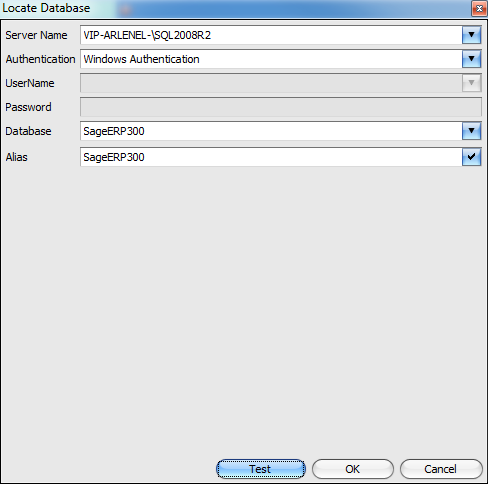
Server Name
- Enter the server name where the database is located.
Authentication
- Select the authentication option to access the SQL server.
UserName
- Enter the user name to access the SQL server.
Password
- Enter the password for the selected user.
Database
- Select the database to locate.
Alias
- You can enter an alias for the database location so that the server path does not display.
- Before you can continue you need to test the connection. Click on the Test button. If the connection is successful, click on OK.
GLDB Link screen
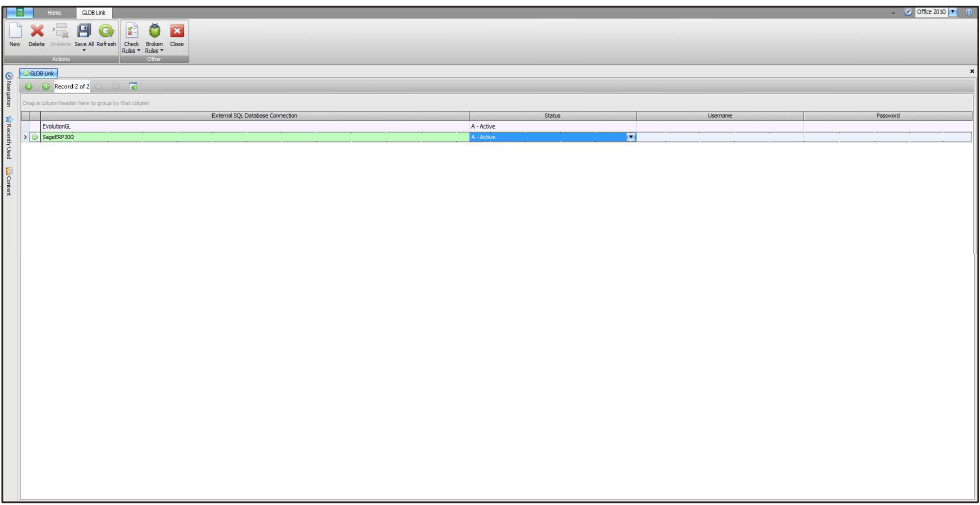
All located databases can be linked. Link the required located database.
Click on the New button.
On the Navigation pane:
Expand Parameters
Expand General Ledger
Double-click on GLDB Link
GL Setup screen
New fields have been added on the General Ledger Setup for the Sage ERP300/Accpac 5+ layout.
On the Navigation pane:
Expand Company Management
Double-click on General Ledger
Double-click on the applicable general ledger
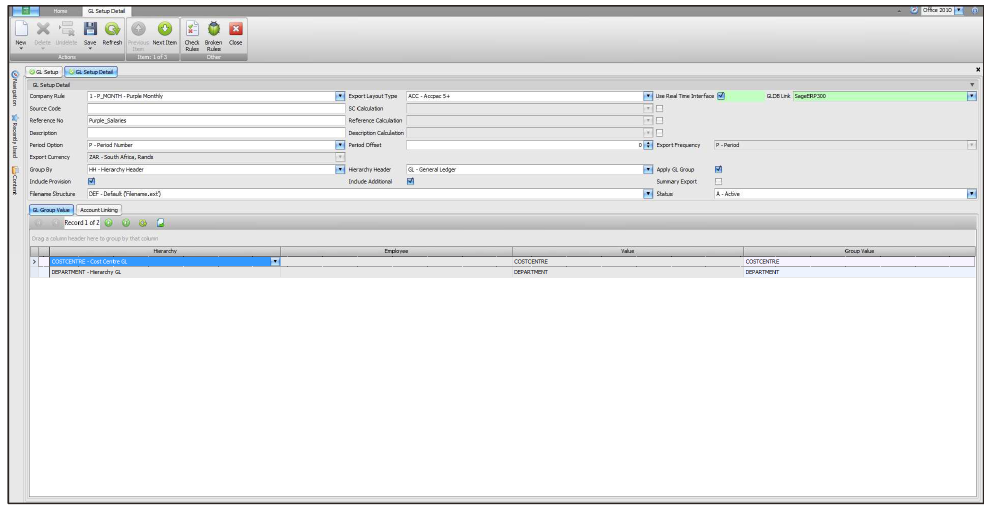
- Use Real Time Interface
Check the checkbox when you want to use the integration functionality.
- GLDB Link
Select the database to which you want to integrate.
GL Export screen
New functionality has been added on the General Ledger Export screen that allows you to validate the account numbers in Sage ERP300 and before you submit.
On the Navigation pane:
Expand Exports
Double-click on GL Export
Double-click on the applicable export
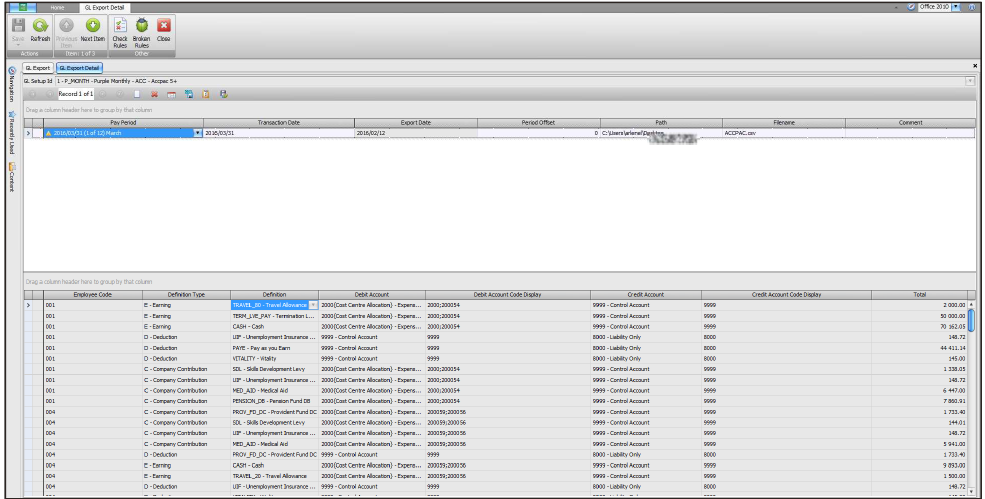
- Validate Account
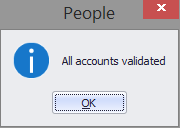
Once you have generated the accounts. You can validate the accounts generated in the People application with the account numbers in Sage 300 Cloud.
Click on the Validate Account button.
- Submit
Click on the Submit button to export the journal to Sage 300 Cloud.
The following screen will be displayed:
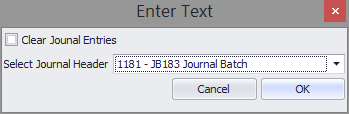
- Clear Journal Entries
Check the checkbox if the existing journal entries must be cleared when you import the new journal.
- Select Journal Header
Click on the down-arrow and select the journal batch you want to update.
 Africa
 Asia
Asia Australia
 Canada
 France
 Ireland
 Kenya
Kenya Nigeria
 Portugal
 Spain
Spain United Arab Emirates
 United Kingdom
 United States
 Germany