How do I delete a company from my payroll?
Summary
Sage VIP Classic, Sage Premier: This article will provide you with the steps to delete a company from the payroll
Resolution
 NOTE: If your payroll system is licensed for the following modules, you will not be able to delete the companies, the reason being that these companies integrate with other databases, and could result in errors when the data synchronizes:
- Premier ESS
- Premier HR
- Sage Self Service
If you require further assistance, kindly contact the Support Team
Follow these steps to delete a company:
- The user must have full access to the company to be able to delete a company
- Make a backup of the company data - once you delete the company you will not be able to recover the data.
- Ensure that all operators are out of the system
- Open up your payroll system. Do not log into any of the companies (stay on the Company Listing screen)
- Click on the Add Co button at the top-left of the screen.
- Under the Delete a Company section, you will select Delete a Company

- You will then be asked if you have made a backup of the company
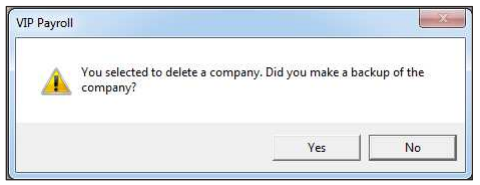
- Click on Yes to confirm if you have made a backup)
- Otherwise, click on No and then make a backup of the company
- It will then ask you again to confirm that you would like to delete a company
- Click on Yes to continue
- Click on the drop-down arrow and select the company that you would like to delete
- It will again bring up a confirmation message
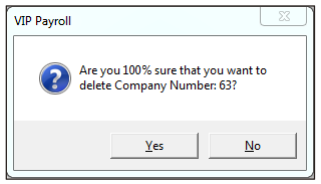
- Click on Yes if you are sure
- You will then return to the Company Listing screen
Solution Properties
- Solution ID
- 200525121613802
- Last Modified Date
- Fri Apr 24 13:08:33 UTC 2026
- Views
- 0