How to use calculations in Methods of Calculation
Summary
Description
Formula Methods of Calculation allow you to specify a calculation according to which an Earning, Deduction or Calculation Field can be calculated.
Resolution
When adding a Formula method, the option Calculations must be selected under Type of Method:
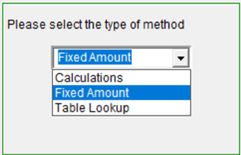
The code VAL must be used before entering an amount in a Method of Calculation.
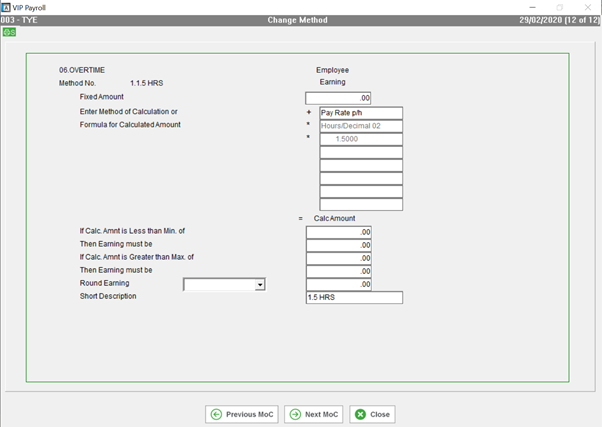
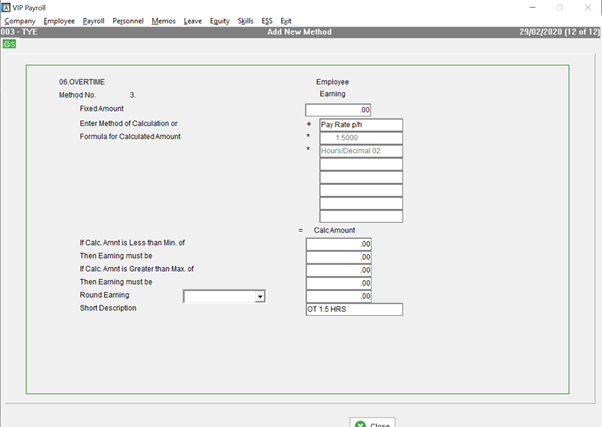
An example of using a formula for a Method of Calculation is shown below, followed by a detailed explanation of all the possible codes and operating signs that can be used.
 EXAMPLE: A method for Overtime 1.5 must be entered:

Before setting up the method, you need to decide on the storage of Hourly/Unit Input Values:
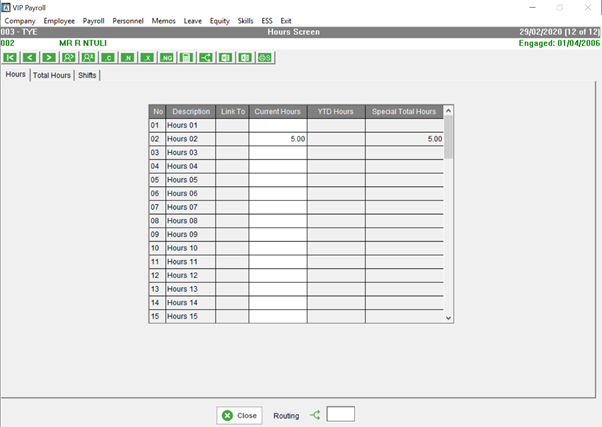
Whenever you are going to input Hours or Units, you can specify a line number from 01-72 together with the HD or UD code, so that the hours/units which are entered will be stored on the employee’s Hours screen (HRS) on the selected line.
In the example below, storage field 2 will be used in the method, so that the hours entered will be stored on the employee’s Hours screen line 2:
The employee’s Hours screen (HRS) after input is done:
When setting up a method, you need to take Method of Calculation Codes into consideration.
There are a number of codes available for setting up Methods of Calculation. These codes refer to specific fields on the VIP Premier System which can be used in the calculation:
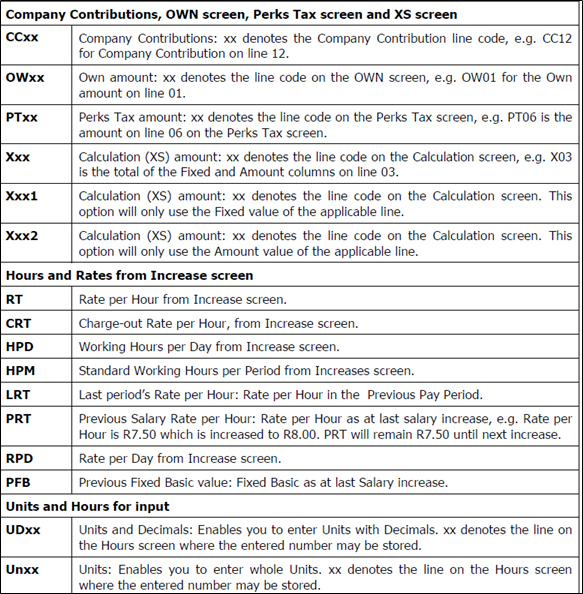
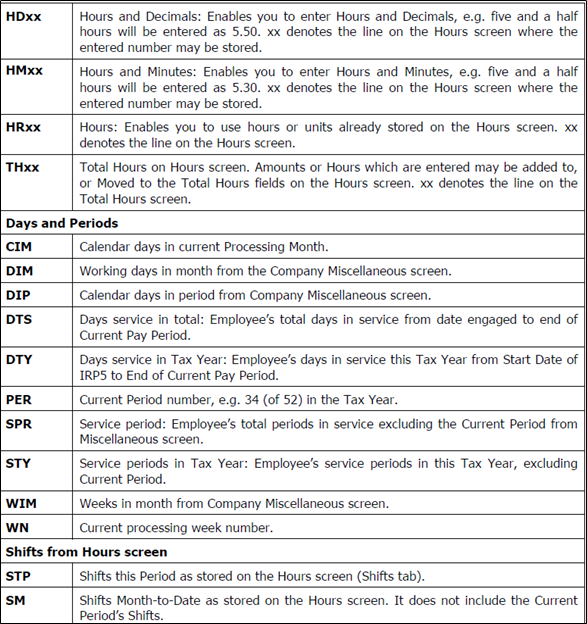
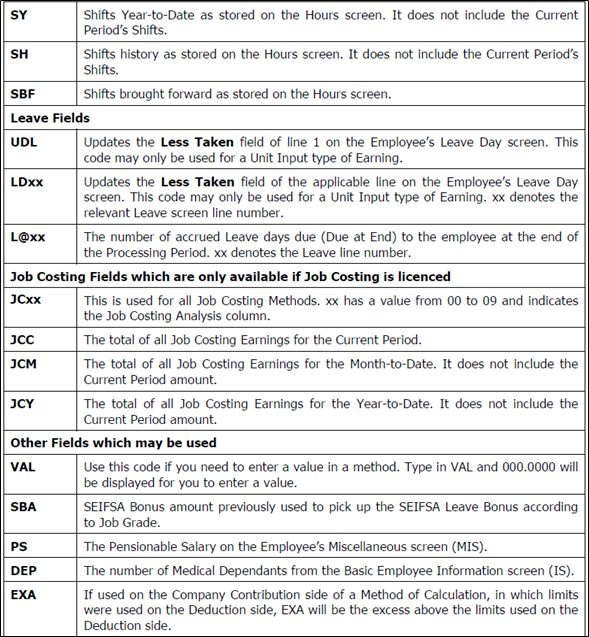
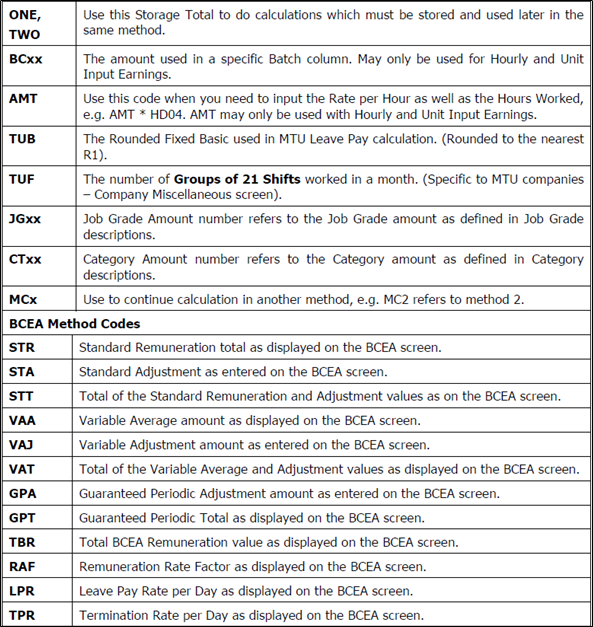
For an updated list of codes, when you are in the method, you can type a ? and a screen will be displayed where you see all codes available to use in a method.

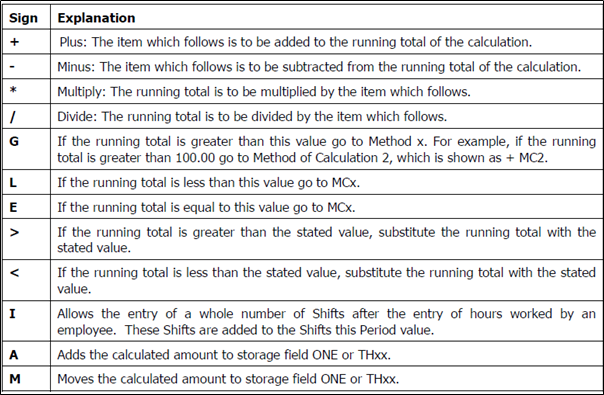
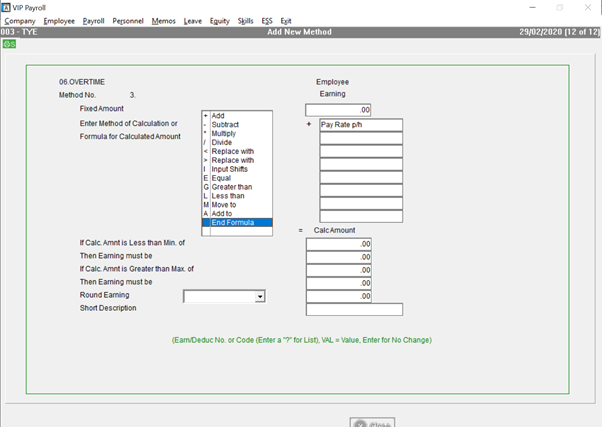
On each line of a Method of Calculation, except the first, an arithmetic sign must be selected.
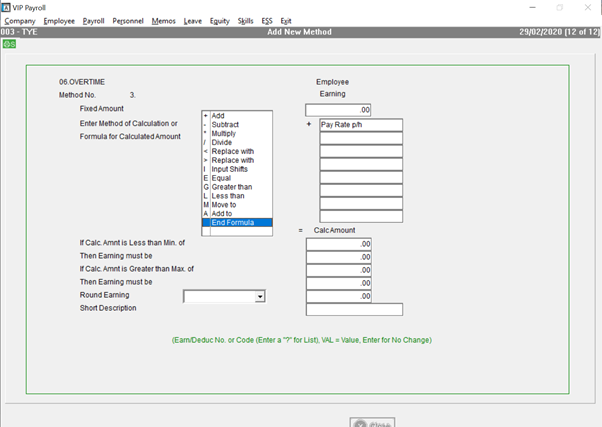
How to create a method
- Click in the first line of the Calculation and the + will be inserted automatically.
- Enter a question mark (?) here to display the available Method Codes.
3. Note down the codes that are required, i.e. RT for Rate per Hour and HD02 for storage of the input hours on
4. Click on Cancel
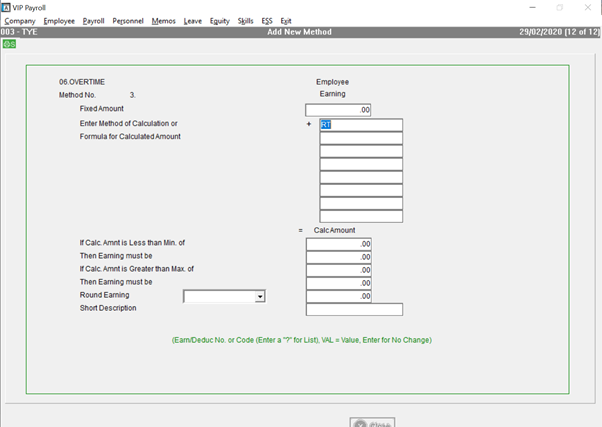
5. Enter RT, the code for Rate per Hour, as noted down above, and <Enter>.
6. Select the operator sign that you want to use by clicking on it, e.g. * for multiply.
7. Type VAL and <Enter>.
8. Type the value, which is 1.5 and <Enter>.
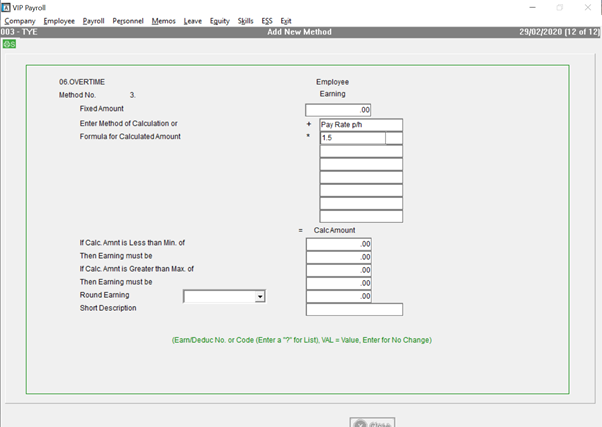
9. Click on Multiply.
10. Type HD02 and <Enter>.
11. Click on End Formula when the formula is completed
12. Enter short description
Click on close when you are finished and close again to exit. The system will ask you to recalculate, select Yes.
Solution Properties
- Solution ID
- 200521142150308
- Last Modified Date
- Wed Mar 23 14:28:50 UTC 2022
- Views
- 0