How to create leave entitlements with Methods of Calculation
Summary
Description
Leave Entitlement can be determined according to Methods of Calculation.
If the parameter Leave Methods on the General screen of the Leave Control screen is ticked, you will be able to add Methods of Calculation for Leave Entitlement for any Leave Line.
Resolution
If the parameter Leave Methods on the General screen of the Leave Control screen is ticked, the heading Method will be displayed on the Leave Lines screen, for all Leave Lines, indicating that Methods of Calculation are in use.
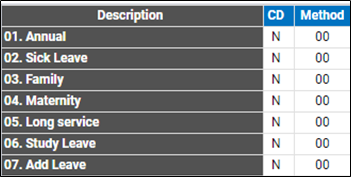
Accessing Leave Entitlement Methods of Calculation from the Leave Menu:
Click on Leave
Click on Leave Methods
OR
Accessing Leave Entitlement Methods of Calculation from the Leave Lines screen: Click on the Methods column of the applicable Leave Line, e.g. Annual Leave.
The Methods of Calculation screen will be displayed:
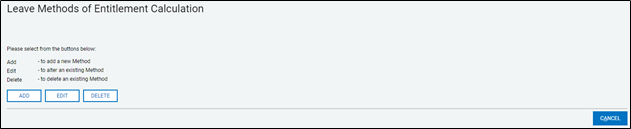
Adding a Leave Entitlement Method of Calculation
On the Methods of Calculation screen, click on Add . If you have accessed the Leave Entitlement Methods of Calculation screen from the Leave Menu, the following screen will be displayed:
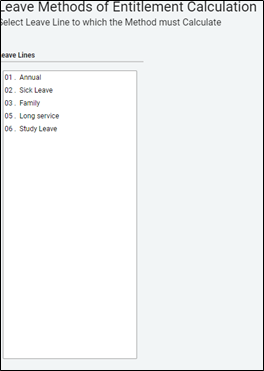
Click on the Leave Line for which the Method must be added,  EXAMPLE: 01 – Annual.
Method Numbers allow for 2 characters and any entries from 01 to 99 are allowed. Select a method number.
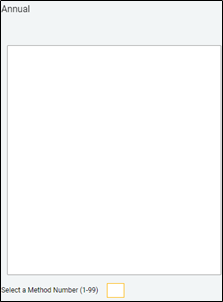
After you have entered the Method Number, click on Continue, the Leave Entitlement Method screen will be displayed:
| Option | Explanation |
| When to Allocate | This field is used to specify whether the Leave should accrue at the Start or End of the Cycle/Period or during Input and defaults from the existing When column on the Leave Lines screen.
If the Start of Cycle (SoC) option is selected, the Conditions for Please note that the Cycle Date on the Leave Lines screen must be
If the Input Based option is selected, no pro-rata can be done and the Conditions for Calculation of Pro-Rata Leave portion of thescreen will be empty. If the Start of Period/Month (SoM) option is selected, the Leave forNew and Terminated employees in the Current Processing Period may be Pro-rated, using one of the two pro-rata options available. |
| Entitlement Days | This field is used to enter the Entitlement Days, e.g. 20.00 for 20 days. Once you have entered a Value for Entitlement Days, a
|
| Entitlement Calculation | When setting up Methods of Calculation for Leave Entitlement, the same principles (with a few exceptions) apply as when setting up Methods of Calculation for normal Payroll Fields, such as Earnings or Deductions. |
| Enter Leave Method of Calculation | This field is used to enter the Method of Calculation for the Leave Entitlement. A formula consisting of up to eight steps only can be set up in a Method of Calculation.
A new code LC – Leave Category is available when defining Methods of Calculation for Leave Entitlement. When LC is entered in a method, three options are available: “=” indicates that the Years in Service must be equal to the
|
| Cycle End Rounding
| Tick this field when the full Leave Entitlement Value must be rounded up in the last period (week, month, etc.) of the Leave Cycle. For example, 28/12 = 2.3333. If 2.3333 is multiplied by 12, it equals 27.996 instead of 28. Certain conditions must be met before the Rounding can be applied, e.g. the employee must have been in service for a full year and no changes must have been made to either the number of Entitlement Days for the year, or to the Cycle Date. An automatic transaction will be generated for the Rounded Value in the last period. |
| Method Rounding | Here you may specify whether the Allocation amount is to be rounded at the end of each Period to the nearest whole number, or decimal Value. You may also specify whether Rounding is to be Up, Down, or Both, i.e. up or down to the nearest Value. |
| Description | Enter a meaningful Short Description for the Method.
|
| Conditions for Calculation of Pro-Rata Leave | The purpose of this section of the Method of Calculation is to enable If When to Allocate is set to Start of Period/Month (SoM), and the Cycle Date on the Leave Lines screen is set up as either Date Engaged, a Fixed Cycle Date, a Specified Date plus a Number of Months, or Leave Start Date, the Leave for New and Terminated employees in the Current Processing Period may be Pro-rated. Two options are available but only one option can be selected. If the Option 1: Option 2: |
| OPTION 1: | |
| Plus Entitlement Value | The system calculates this Value automatically. In this example, an (e.g. 20 days/12 months = 1.6667). |
| Divided by | The following options are available:
|
| Multiplied by | The following options are available:
|
| OPTION 2: | |
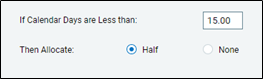
| If Calendar Days are less than | The specified Calendar days must be entered in this field, e.g. 15 |
| Then Allocate | If the days are less than the specified days, two options are available:
|


 These codes may be used in the Method of Calculation.



Solution Properties
- Solution ID
- 200513132730249
- Last Modified Date
- Wed Mar 23 14:28:43 UTC 2022
- Views
- 0