

Summary
Description
This document will guide you how to flag employees for tax certificates manual issue.
Resolution
To flag an employee for manual tax certificate.
From navigation pane
Expand Employee Management
Select Employee
Select the applicable employee
Select Employee Detail
Select Tax Definition
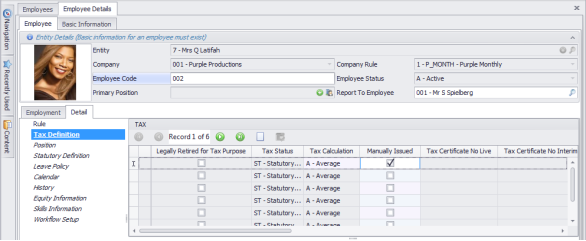

On the applicable tax record tick Manually Issued and the Save the changes.
To flag multiple employees for manual issue you should you User Defined Batch.
Click here for guideline on how to setup, verify and process a User Defined Batch.
On the Field Selection Page of the User Defined Batch:
Expand Employees
Expand Employee Tax
Select: Manual Issue
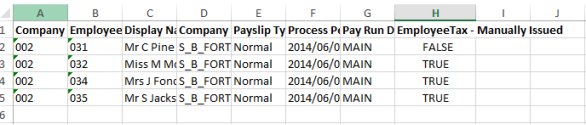
Change Manual Issue to TRUE if the employee is supposed to be get a manual certificate
Then import the batch into the system, below are steps on how to import a batch.
From navigation pane
Expand Utilities
Expand Batches
Select Batch Instance Management
Click-on Create New Batch


A batch wizard will open click Next
Select the template that you have created on User Defined Batch.
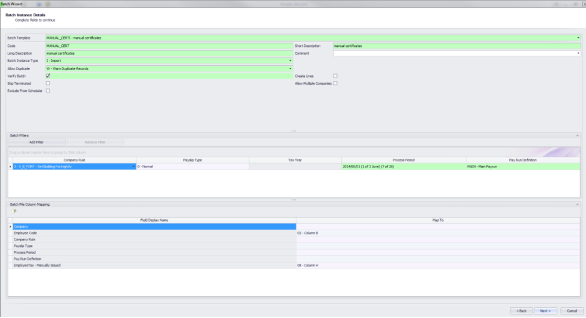

You can make changes on this screen should you want to make modifications to the layout.
Select Next.
Click on this icon to browse to where you have save the file that you want to import


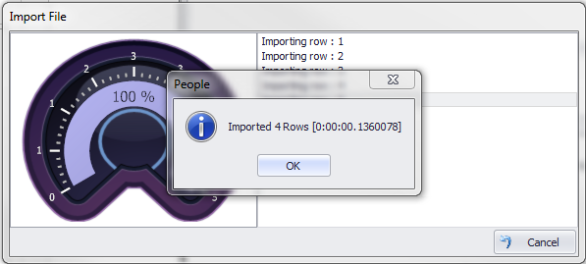
Once the file is imported you will get a message mentioning how many employees’ data is included in the file. Select OK.
Please Map the Fields to sheet that has the information you would like to import.
Select Next.
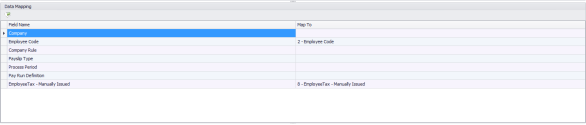
Then click on Finish to complete the import

Then you will have to verify the batch and process, you can use the guide on how to setup, verify and process batch.
Click here for steps on how to add a Manual Tax Certificate in e@syfile.
 Africa
 Asia
Asia Australia
 Canada
 France
 Ireland
 Kenya
Kenya Nigeria
 Portugal
 Spain
Spain United Arab Emirates
 United Kingdom
 United States
 Germany