Utilities – Calculation Management – Changing a Calculation
Summary
Description
It's often necessary to make changes to existing costume calculations with the system. A good example to better explain is when the Pension/Provident Fund changes the percentage on which they are calculated.
Resolution
If you feel uncertain making these changes please make a backup before continuing making changes.
From the Navigation Pane
Expand Utilities
Double-click on Calculation Management
Double-click on Custom Calculations
Double-click on the applicable calculation
Double-click on the calculation you would like to update, or select applicable calculation and click on Detail button on the ribbon.
Ensure you selected the current active Version, then Click on the small New button.
The current calculation will open in the Expression Builder.
As previously mentioned, in my example, I would like to change the percentage value for the Pension Fund calculation from 7.5% to 8.5%. In order to do this, where the value refers to 0.075 I will change it to 0.085 or 7.5/100 changes to 8.5/100.
Make the applicable changes.
Click on Verify.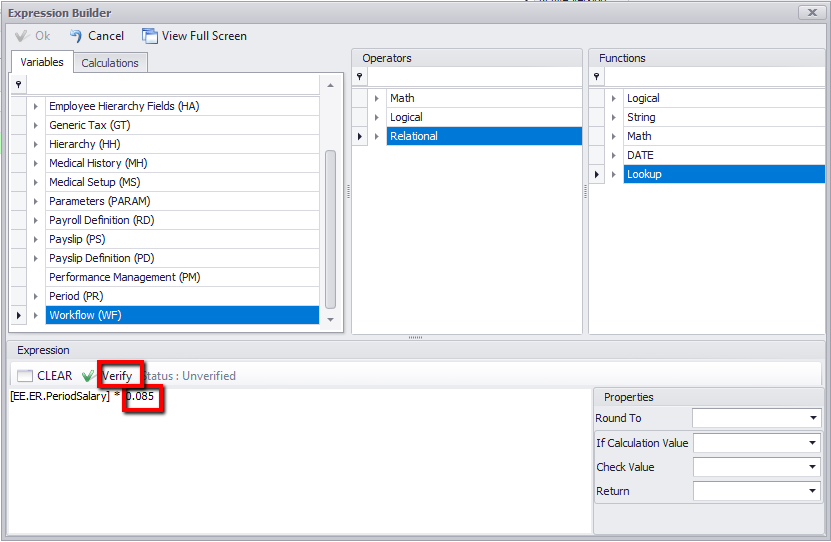
Click on Ok once the status is verified.
The following message will appear: Set Calculation Definition as the active definition – Please select Yes.
This means that this calculation will be the active calculation.

Then Click on the Save button on the ribbon.
For the changes to take affect the user needs to Re Calc All on all the Company Rules which are applicable.
On the Navigation Pane
Expand Company Management
Double-click on Company Rule
Double-click on the applicable Company Rule
On the ribbon click on the Recalc All button on the ribbon.
Solution Properties
- Solution ID
- 200415163314328
- Last Modified Date
- Wed Mar 23 14:23:45 UTC 2022
- Views
- 0