

Summary
Description
The Workforce Statistics Report is a quick way to gain information into:
- Number of Terminations per month
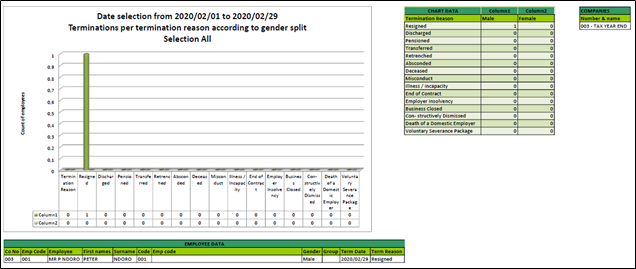
- Number of Terminations according to Termination Reason
- Group Analysis
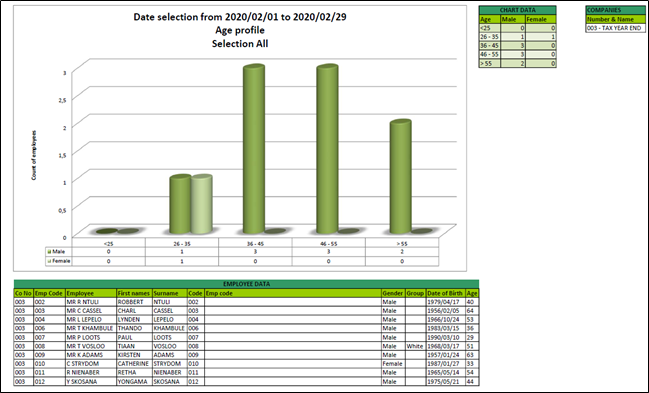
- Age Analysis
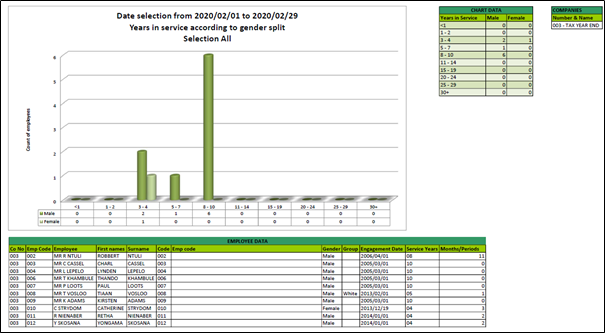
- Service Periods
Resolution
To access the Workforce Statistics Reports, from the main screen of the company go to Reports>Contemporary Reports>Workforce Statistics.
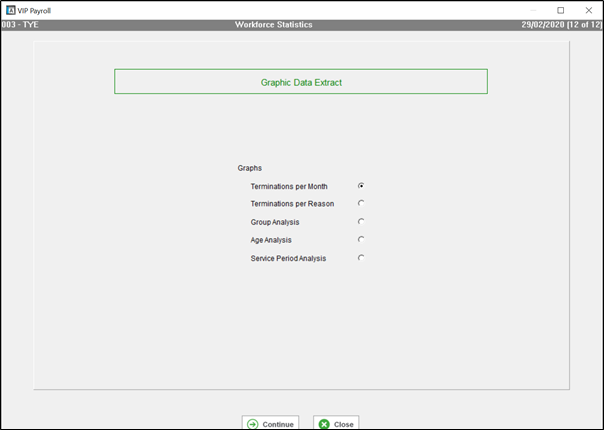
Each of these selections will merge information to an Excel document for further analysis.
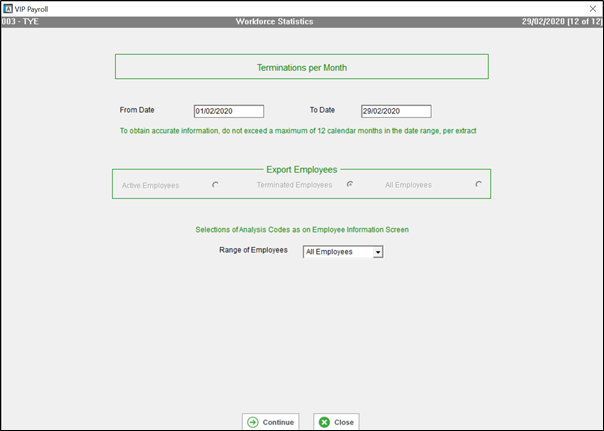
A range of employees can be selected by the available options from the dropdown menu. Once you have made your selections click on Continue.
The report will default to generate for the current company only. You can select more than one company in the report by clicking on the company and entering the password. Once all selections have been made, click on Continue.
An onscreen message will confirm how many records have been exported, if any. Click on OK
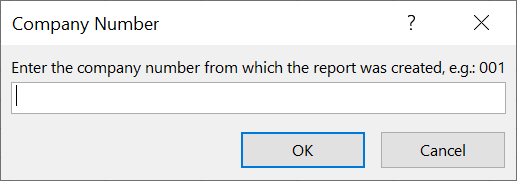
Excel will populate and might require you to browse to your payroll system folder. Click on the folder and click on the Select button in Excel. You will be required to enter the company number from which you are generating the report, so which company are you logged into when generating the report, then click on OK.
If the data does not automatically populate in Excel, look for the ‘Enable Content’ block.
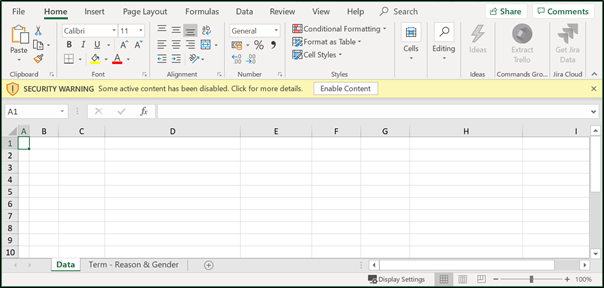
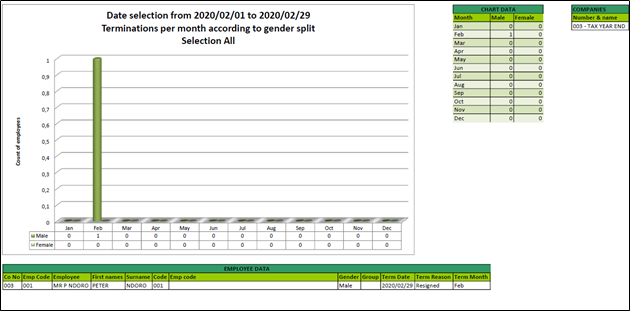
There will be a graph and the data will be listed. The same report generation process will follow for each of the respective data sets.
 EXAMPLE: Terminations per month
EXAMPLE: Terminations per reason
EXAMPLE: Group Analysis
EXAMPLE: Age Analysis
EXAMPLE: Service Periods
 Africa
 Asia
 Australia
 Canada
 France
 Ireland
 Kenya
 Nigeria
 Portugal
 Spain
 United Arab Emirates
 United Kingdom
 United States
 Germany